Mackanized ECU Logger - how to use it
Live logging for Saab engine ECUs. The logger reads the values the engine ECU works with, straight from its memory, together with the values the car itself sends on its bus. It only reads: nothing is ever written to any ECU. Free with every Mackanized licence.
Version 0.7.14-beta Download MackanizedLogger_v0.7.14-beta.exe
You need
- A licence key file (mackanizedlogger.key, engineflasher.key or tcmflasher.key) in the same folder as the logger program. Any current Mackanized licence works.
- A CAN interface: Scanmatik SM2 or SM3, Kvaser (with its own driver or J2534), Tactrix OpenPort 2.0, OBDX or LAWICEL CANUSB. The OpenPort 2.0 needs no driver install: ours is built into the program and shows as "OpenPort 2.0 (built-in driver)" in the interface list.
- A car with one of these engine ECUs: Bosch MED9.6.1 (9-3 2014), Bosch ME9.6 (9-3 V6), Bosch ME9.6.1 V6 (9-5 2010-2012, 9-4X), GM E39 / E39A, or Bosch EDC16 diesel. On Trionic 7 cars (9-5 1998-2010, 9-3 1998-2002) the logger reads the values the car sends on its bus.
- Internet when you press Connect. The first time on a car, the memory map for its ECU software is downloaded; the biggest maps take up to a minute on a slow line. The map is then kept on this computer, encrypted, so the next Connect only fetches a small unlock key.
Step by step
- Plug in and start. Plug the interface into the OBD socket and switch the ignition on (the engine may run). Start the logger and pick your interface in the Interface list. The dot at the top turns green when your licence is confirmed.
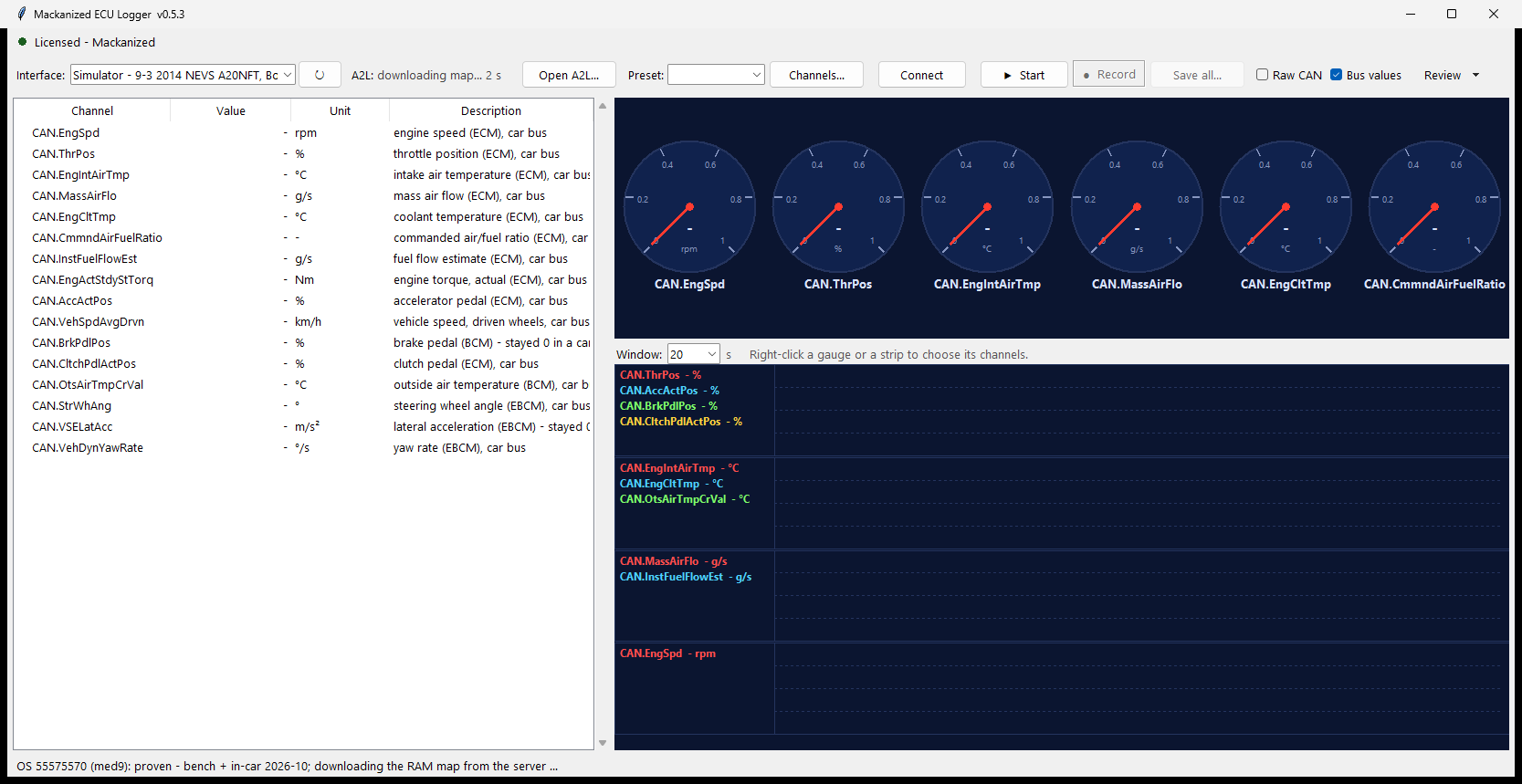
- Connect. Press Connect. A yellow banner under the buttons shows what the logger is doing and for how long ("Scanning the car's bus... 3 / 5 s", then asking the modules); it has its own Stop button and goes away when Connect is done. The logger listens to the car for a few seconds, then asks the engine ECU, the gearbox and the ESP what they can report, and reads the ECU's software number. Then it gets the memory map for exactly that software. While it comes in, the A2L field says "downloading map..." with the seconds counting; then it shows the map's name. The line at the bottom of the window says which software was found. "Not supported" means we have no map for that software yet: the bus values and the other values the car answers still work.
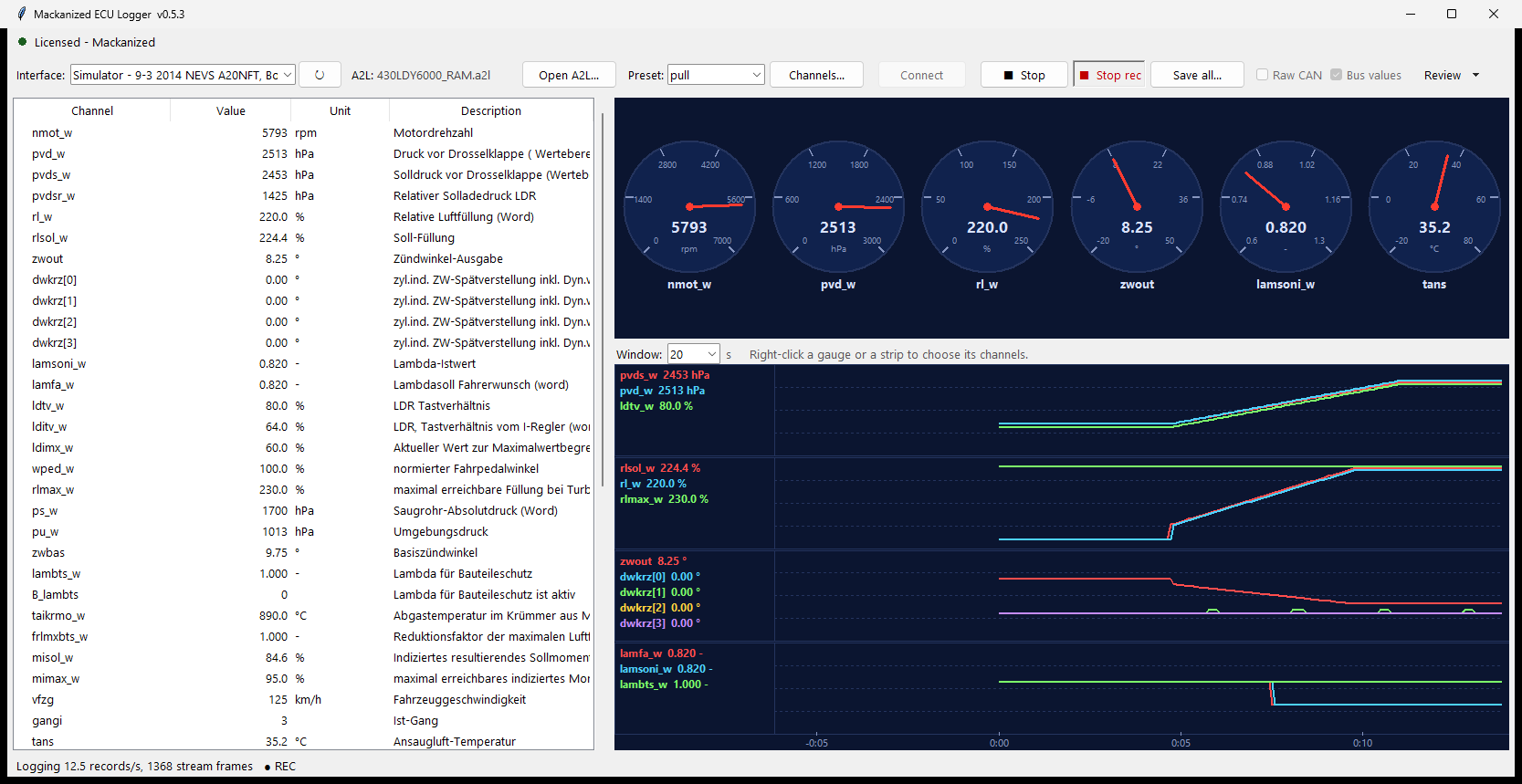
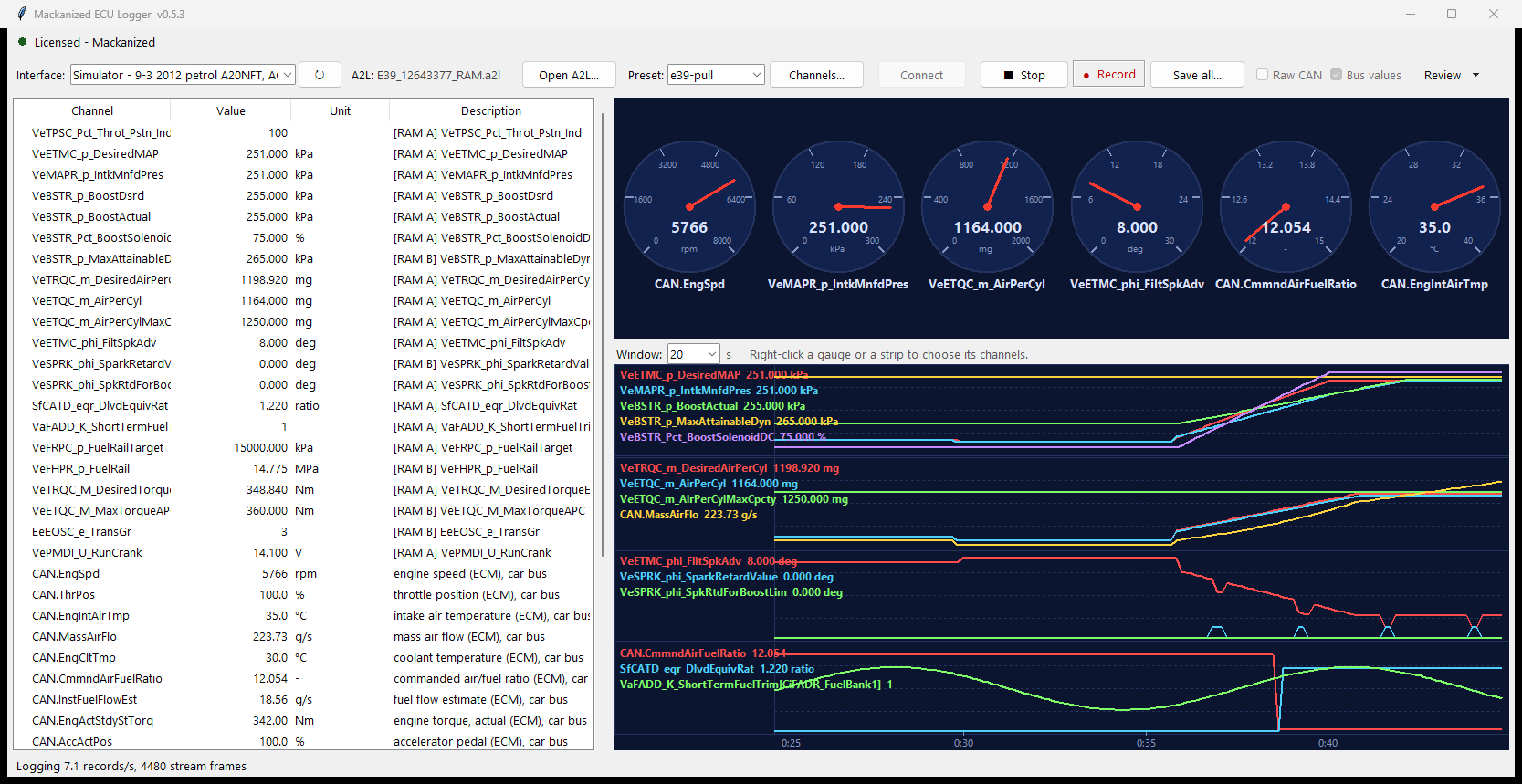
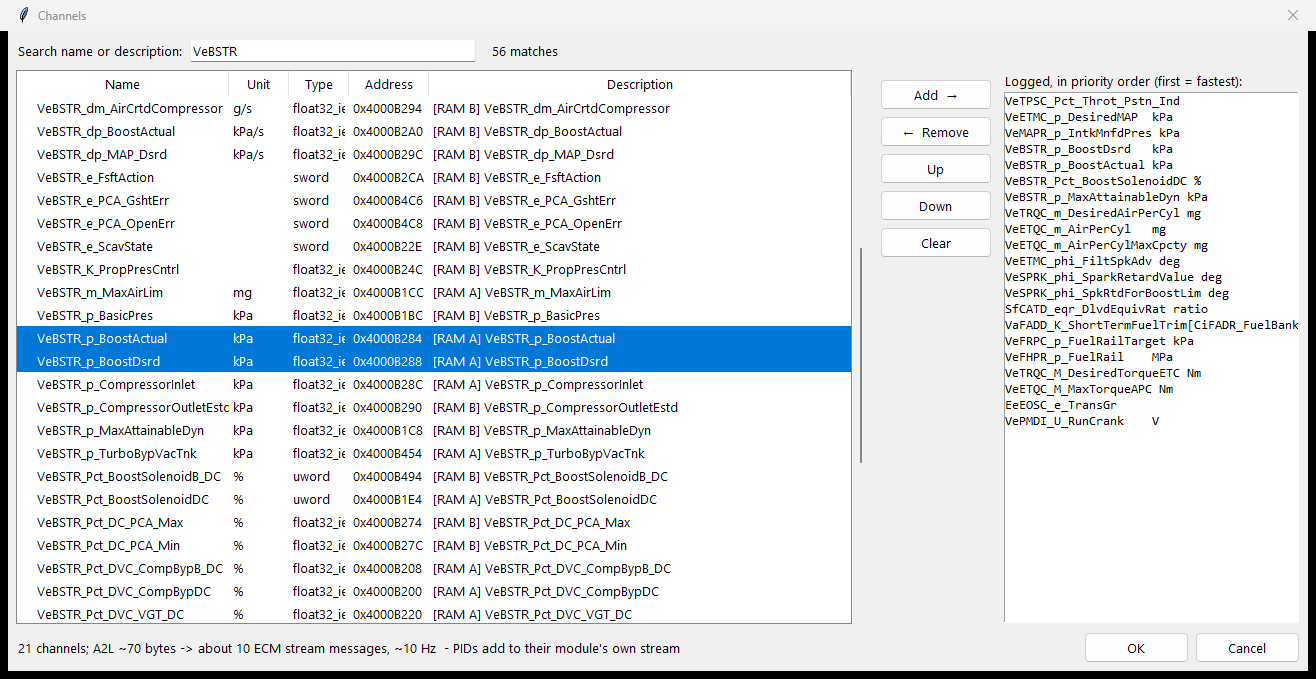
- Choose what to log. Pick a preset. Bosch petrol ECUs: pull, boost, knock, fuel, limits, limits-torque, limits-air, limits-spark, cams and bench; me96-pull and me96-limits for the ME9.6 V6. GM E39: e39-pull, e39-boost, e39-knock, e39-fuel, e39-limits, e39-cams and e39-bench. EDC16: diesel. Trionic 8: t8-pull, t8-boost, t8-knock, t8-fuel, t8-torque, t8-gearbox and t8-basic. Each preset brings its own gauges and charts. When the map is for a different kind of ECU than your last session, the logger switches to that ECU's standard preset by itself (pull, e39-pull or diesel). A Trionic 8 starts on t8-pull when you press Connect: engine speed, boost target against actual boost, requested against actual air, ignition and knock retard, knock counts per cylinder, lambda, torque request against actual torque, pedal and throttle, and what the gearbox asks for. Most of it is the PIDs the ECU itself offers, ready at once; a few values (ignition offset, boost target, torque limits) are read from the ECU's own symbol table, which the logger fetches once per software version (about 20 seconds the first time) and then keeps. On the first Start on a Trionic 8 the banner shows a percent bar and the time left while the table is read, and Stop works during it. A name the car cannot give is skipped and listed in the line at the bottom of the window and in the session file. A channel list you picked by hand for another kind of ECU is replaced by the connected ECU's standard preset (the status line says so). On a manual Trionic 8 car (no gearbox on the bus) the automatic-gearbox values are left out of the presets. An ME9.6 always starts on me96-pull, the tuning set: what the ECM streams (rpm, load, lambda, knock, injector time) comes about 25 times a second, boost and the torque limits about 3 times a second, unless you picked something else in this session. Channels... lets you search the whole map and add your own. Right-click a gauge or a chart to choose what it shows. Each dial also shows the lowest and highest value seen since Start (numbers under the name and two small ticks on the dial); double-click a dial to reset its min/max, or use the right-click menu to reset all; in a recorded log they are the min/max of the section on screen.
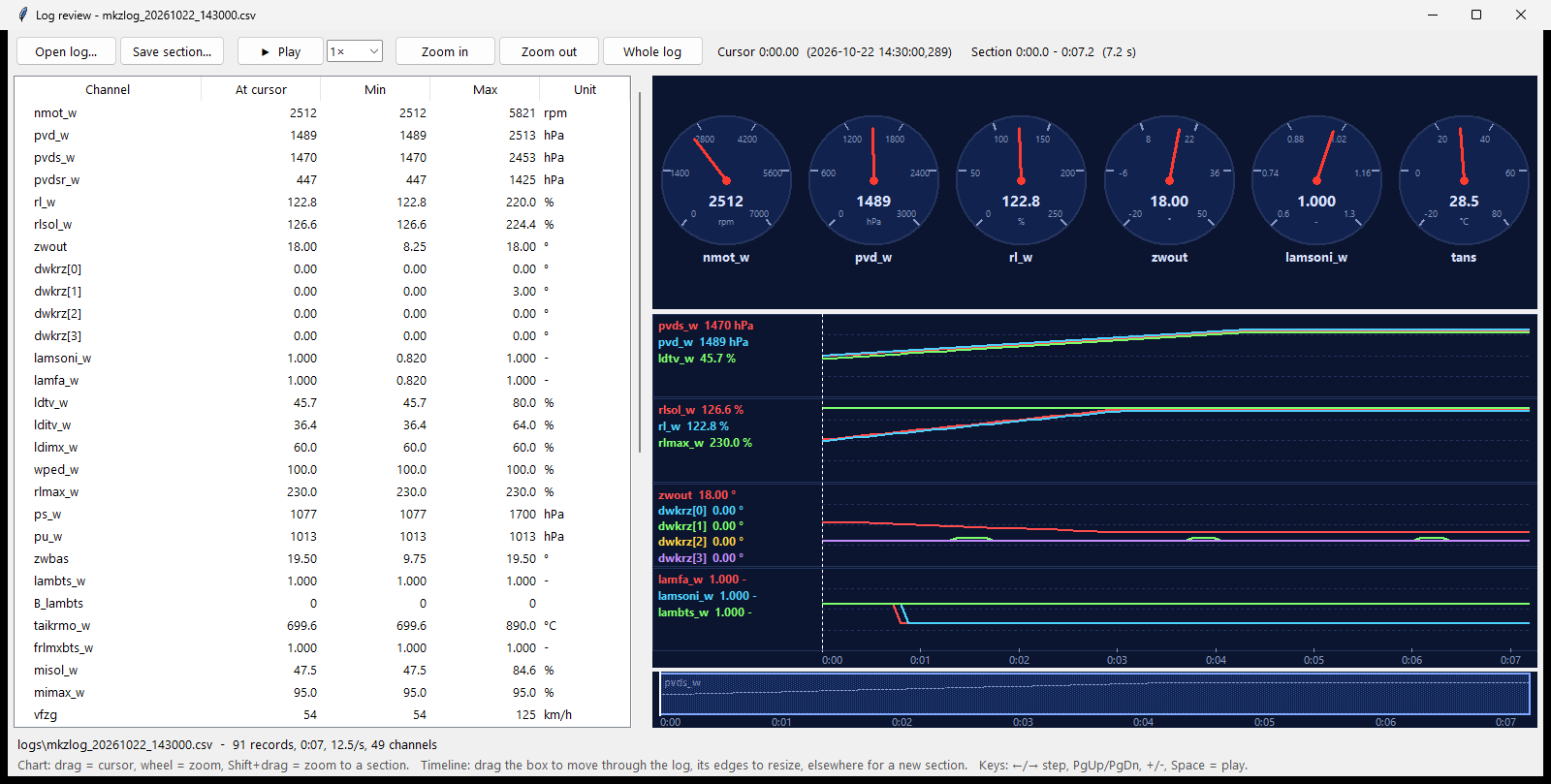
- Start, then Record. Start shows the values live in the table, on the gauges and in the charts. If the map is still downloading, Start waits for it; press Start again to begin without it. Record writes a log file in the logs folder next to the program, named mkzlog_ with the date and time (for example mkzlog_20261022_143000.csv). Record then reads Stop rec: press it to stop, and the logger asks where to keep the file. Everything since Start is also kept in logs\autosave, and Save all... copies it wherever you want.
- Review. Review opens a saved log, or the session you are in, with a timeline, zoom and Save section. The log files also open in TxLogger, Excel or any spreadsheet.
Good to know
- Bus values is ticked from the start. It logs the values the car itself sends, next to the ECU values: engine speed, pedal, air flow, torque, air/fuel ratio, road speed, temperatures and more. Only what this car was heard sending during Connect is added. It works on cars with a MED9.6.1, ME9.6.1 V6 or E39 engine ECU (9-3 2012-2014 petrol, 9-5 2010-2012 and 9-4X petrol) and on Trionic 7 cars.
- On the GM E39, keep Bus values ticked: the e39 presets take engine speed, pedal, air flow, torque, air/fuel ratio, road speed and temperatures from the car's bus, not from the ECU memory. Those channels start with CAN.
- Without internet your licence keeps working for up to 7 days after it was last confirmed, but the memory map cannot be unlocked: you then get the bus values and the values the modules answer, not the ECU memory.
- The maps are kept, encrypted, in the mapcache folder next to the program. You can delete that folder at any time; the map is downloaded again at the next Connect.
- Open A2L... loads a full A2L you have yourself. Connect then keeps it instead of downloading ours.
- Raw CAN records every frame on the bus to logs\rawcan for later analysis. On a CANUSB, Bus values and Raw CAN can need more than the adapter passes (about 1000 frames per second), so expect gaps in those; the ECU values are not affected.
- The Simulator entries in the interface list are our built-in test cars; the pictures on this page were taken on them. Pick your adapter to log your car.
- Do not run the logger and a flasher on the same interface at the same time, and do not flash while the logger is connected.
- The logger checks for a newer version when it starts and shows a Download update button when there is one.
- What the logger sends to Mackanized: the logger sends scan and diagnostic information to Mackanized to support you; logged car data only when you choose to send it. Scan and diagnostic information goes up by itself, in the background, and never delays Connect or Start: after every Connect the result of the scan (which modules answered, the software numbers, the PIDs) and the Connect lines of the session log, and after every Stop, or at once when an error occurs, the session log lines of that run (what was started, notes, errors). If there is no connection the files wait in logs\pending_uploads and are sent the next time the logger reaches the server.
- Your car data (the log of a run, recordings, and raw CAN if you recorded it) is never sent by itself. When you press Stop the logger asks "Send this run to Mackanized for analysis?" and shows exactly which files would go, with their size and a box for a note about what happened. Press Send to send, or Not now. Tick "Don't ask me again after Stop" to stop the question. The Send logs to Mackanized button at the top always works for older logs, recordings or the log open in Review. A progress bar shows the upload and you can cancel it; when it is done you get a reference number such as L-2026-1025-0012 - tell it to Mackanized when you write to us. The upload can be up to 100 MB (CSV logs shrink about ten times); raw CAN is large and is off by default.
- When something looks wrong, tell us the reference number, or send logs\session_<date>.txt from that day: it says which software the logger found and what it did.
Questions or a log that looks wrong: send it to us with the program's session or debug log and we look at it together.